Interview editor
Two speakers answer questions, sometimes talking over one another.
Check who said each line before relying on the edimakor caption draft; a mistaken speaker change can alter the meaning of an answer.
Caption workflow
An edimakor auto subtitle workflow can give you a starting point for captions, not a finished transcript. Plan to check the words, timing, and readability against the original video before sharing it.

Speech recognition, caption timing, and on-screen presentation are separate checks. None should be treated as proof that every line is correct.
Background music, overlapping voices, and quiet words can leave a generated caption wrong even when the sentence looks plausible.
What to do instead
Replay the difficult passage with headphones and correct it against what you hear.
A draft may spell a person, place, or product name as a more familiar word. Edimakor cannot know your intended spelling from sound alone.
What to do instead
Keep a short list of names and terminology beside the video while reviewing.
A line that appears too early, disappears too quickly, or breaks mid-phrase may be difficult to follow despite accurate wording.
What to do instead
Watch the captioned video at normal speed and adjust line breaks and display times where needed.
Automatic words alone do not establish that captions identify speakers or convey meaningful non-speech sounds.
What to do instead
Review the final video for context that a viewer cannot get from dialogue alone.
Treat auto subtitle creation as a reviewable editing workflow rather than a one-click accuracy claim.
Choose footage with the clearest available audio. Listen once before captioning so you know the speakers, subject, and words most likely to be misheard.
Use the captioning workflow available in the editor you choose. Read the resulting text alongside the audio instead of assuming that a fluent-looking transcript is accurate.
Check names, numbers, sentence endings, speaker changes, and line breaks. Pause at difficult moments and make corrections while the source is still open.
Play it from beginning to end with captions visible. Check that text is readable over the footage and that no line is cut off or left on screen out of context.
Captioning is one part of a wider video workflow. These guides address different questions without replacing a review of your final captions.
Compare the viewing experience before and after captions are added, then judge the result by watching the actual footage.
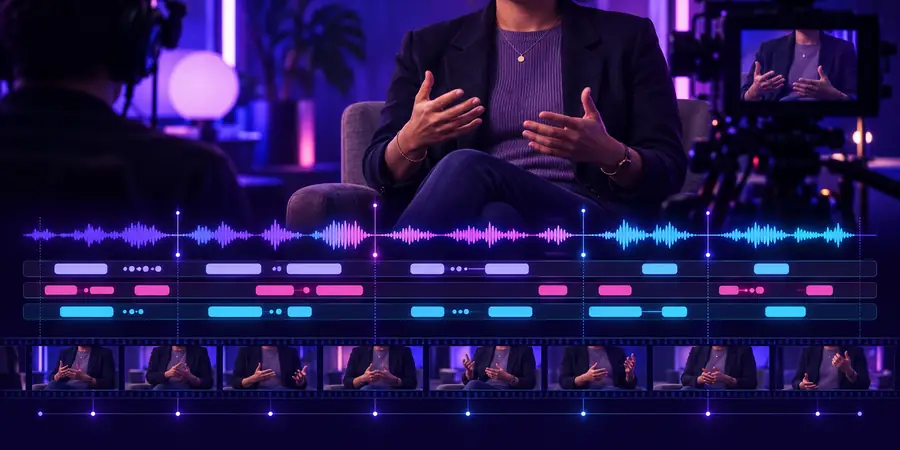
Illustrative images, not a verified before-and-after export. A visible caption layer makes speech available as text, but its wording and timing still require review.
Speech without visible captionsVideo with a caption layerAn edimakor auto subtitle draft can save you from starting with a blank transcript. The review pass determines whether that draft is ready for viewers.
| Automatic draft | Human-reviewed captions | |
|---|---|---|
| Spoken words | Proposed from the audio | Checked against the recording |
| Names and jargon | May use familiar-sounding spellings | Checked against known spelling |
| Speaker changes | May be unclear in the text | Clarified where needed |
| Line breaks | May split a phrase awkwardly | Adjusted for reading |
| Timing | Initial alignment to speech | Watched and corrected in context |
| Final confidence | A starting point, not a guarantee | Based on a complete playback check |
The most important correction depends on what your audience needs to understand.
Two speakers answer questions, sometimes talking over one another.
Check who said each line before relying on the edimakor caption draft; a mistaken speaker change can alter the meaning of an answer.
A presenter says menu names and technical terms while demonstrating a task.
Compare each displayed term with the spoken instruction and the on-screen action so viewers can follow the sequence.
A short clip has quick cuts and text already placed over the footage.
Watch on a small screen to catch captions that disappear too soon or compete with existing text.
Explore a video creation workflow for your caption project, then compare any generated text with the original audio. For edimakor auto subtitle research, the useful distinction is simple: automation drafts the words; a full playback reveals what needs fixing.
Start with words that would change the meaning if misheard: names, numbers, instructions, and negatives. Then watch the video with captions visible to catch timing problems that are hard to spot in a text-only review.
Speech recognition can produce a plausible sentence when the recording is unclear. Background sound, accents, and overlapping speakers make that risk greater, so compare uncertain lines with the audio.
Yes. Even accurately transcribed words may appear too early, remain too long, or break in an awkward place. A playback at normal speed is the simplest way to judge whether the captions follow the speaker.
Treat those words as review priorities. A system may choose a common word with a similar sound, while your audience needs the specific spelling used in the video.