First-time editor
You have several phone clips from one event and need a short recap.
Pick one opening moment, remove repeated shots, and watch the finished file from beginning to end. For a fuller project walkthrough, see how to use edimakor video.
Editing guide
This hitpaw edimakor tutorial walks through a manageable first project: choose a short clip, make a clean cut, review any subtitles, and inspect the exported video. Use the steps as a checklist rather than assuming every feature or control appears in the same place in every version.

Pick a single video and decide what the viewer should understand by the end. A focused project makes each editing decision easier to check.
Treat Edimakor as a workspace for organizing a story, not a substitute for deciding what belongs in it.
Write a one-sentence goal before importing footage: for example, show a product from three angles or explain one tip. Select source clips that support that goal, and set aside duplicates. If you have a spoken introduction, identify the sentence that should reach the viewer first.
Place the strongest opening first, follow it with the necessary explanation or demonstration, and end after the point is made. Trim pauses and repeated takes while preserving enough context for speech and actions to make sense. Watch the rough sequence once without adjusting effects.
Listen for abrupt audio changes, read each visible caption, and check that text does not cover an important part of the picture. Export a short test if your available controls permit it, then play the resulting file outside the editor before sharing.
The two images illustrate different stages of a short-video workflow; they are not a documented before-and-after transformation of the same source clip.
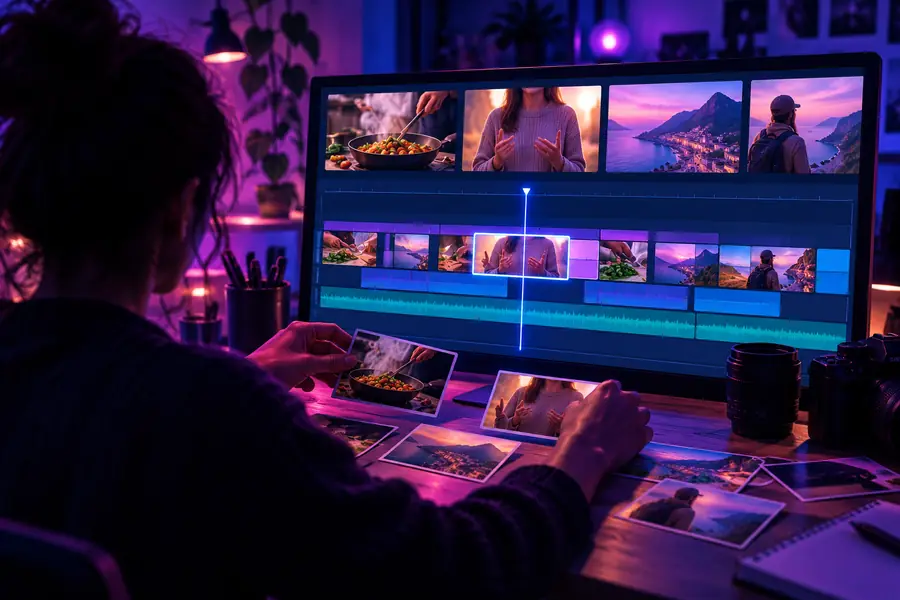

Begin by importing footage you have permission to use. Put clips in story order, trim the start and end of each segment, and play across every cut. If subtitle tools are available in your version, add captions only after the spoken sequence is stable. Compare the preview with the exported file: a readable timeline does not guarantee readable captions on a phone-sized screen.
Assembly stageCaption review stageA rough cut helps you judge the story. The exported file needs a separate inspection because playback, text, and framing can look different outside the project.
| In the rough cut | In the exported file | |
|---|---|---|
| Opening | The first clip is in place. | The first second makes the subject clear. |
| Clip joins | Adjacent clips appear to meet on the timeline. | Playback has no unintended flash, silence, or repeated frame. |
| Speech | Dialogue is audible while editing. | Voice remains understandable against music on another device. |
| Subtitles | Caption text is present in the preview. | Names, timing, line breaks, and punctuation have been checked during playback. |
| Framing | Important details fit in the editor preview. | The intended viewing orientation keeps faces and on-screen text visible. |
| File check | Export settings have been selected. | The saved file opens, plays to the end, and matches the intended cut. |
The same sequence of planning, cutting, and checking works for different projects, but the final review should reflect where the video will be watched.
You have several phone clips from one event and need a short recap.
Pick one opening moment, remove repeated shots, and watch the finished file from beginning to end. For a fuller project walkthrough, see how to use edimakor video.
Your explanation is clear, but viewers may watch with the sound off.
Settle the spoken edit first, then review caption wording and timing against the voice. The edimakor auto subtitle guide goes deeper into that check.
You want to speed up a repetitive editing task without losing control of the result.
Try an available assisted feature on a short segment, compare it with the source, and correct mistakes yourself. Read edimakor ai for a closer look at that division of work.
An editing tutorial is most useful when it ends with a file you have actually watched. Keep the source footage, project, and export distinct; confirm that the export opens; and review it on a device similar to the one your audience may use. If a caption is late or the opening feels slow, revise the project and inspect the next export rather than assuming the preview was enough.
Begin with one short piece of footage and a clear goal for the finished video. Import the material, arrange a basic sequence, and trim obvious pauses before exploring optional tools. A small first project makes it easier to tell whether each change improves the result.
Play across every join and listen for sudden changes in sound. Check whether the opening gives viewers enough context and whether the ending stops after the main point is made. Save your work before making larger structural changes.
Add or generate them after you are reasonably happy with the spoken sequence, if subtitle tools are available in your version. Then compare every line with the audio and check timing, names, and readability. Changing the order of spoken clips later may mean reviewing the captions again.
Open the saved file in a video player rather than judging only the editor preview. Watch from the first frame to the last, listen to the audio, and read any on-screen text at a realistic viewing size. If something is wrong, correct the project and check the new export.
Not necessarily. Interfaces and available features can differ by version or configuration, so use the visible labels in your own workspace as your guide. The durable part of the process is the order of decisions: plan, assemble, refine, export, and inspect.